

To begin creating a program, access the ABAP Editor either via transaction code SE38, or by navigating the SAP menu tree to Tools → ABAP Workbench → Development, in which the ABAP Editor is found. Double-click to execute.
A note to begin: it is advisable to keep the programs created as simple as possible. Do not make them any more complicated than is necessary. This way, when a program is passed on to another developer to work with, fix bugs and so on, it will be far easier for them to understand. Add as many comments as possible to the code, to make it simpler for anyone who comes to it later to understand what a program is doing, and the flow of the logic as it is executed.
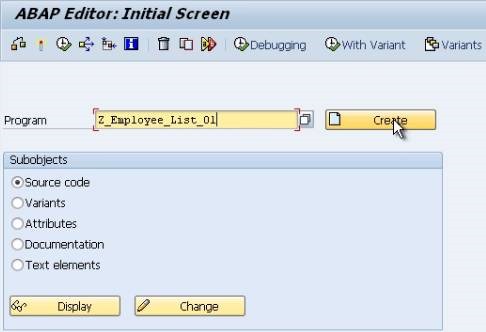
The program name must adhere to the customer naming conventions, meaning that here it must begin with the letter Z. In continuation of the example from the previous chapter, in this instance the program will be titled ‘Z_Employee_List_01’, which should be typed into the ‘Program’ field on the initial screen of the ABAP Editor. Ensure that the ‘Source code’ button is checked, and then click ‘Create’:
A ‘Program Attributes’ window will then appear. In the ‘Title’ box, type a description of what the program will do. In this example, “My Employee List Report”. The Original language should be set to EN, English by default, just check this, as it can have an effect on the text entries displayed within certain programs. Any text entries created within the program are language-specific, and can be maintained for each country using a translation tool. This will not be examined at length here, but is something to bear in mind.
In the ‘Attributes’ section of the window, for the ‘Type’, click the drop-down menu and select ‘Executable program’, meaning that the program can be executed without the use of a transaction code, and also that it can be run as a background job. The ‘Status’ selected should be ‘Test program’, and the ‘Application’ should be ‘Basis’. These two options help to manage the program within the SAP system itself, describing what the program will be used for, and also the program development status.
For now, the other fields below these should be left empty. Particularly ensure that the ‘Editor Lock’ box is left clear (selection of this will prevent the program from being edited). ‘Unicode checks active’ should be selected, as should ‘Fixed point arithmetic’ (without this, any packed-decimal fields in the program will be rounded to whole numbers). Leave the ‘Start using variant’ box blank. Then, click the Save button.

The familiar ‘Create Object Directory Entry’ box from the previous section should appear now, click the ‘Local object’ option as before to assign the program to the temporary development class. Once this is achieved, the coding screen is reached.
Code Editor
Here, focus will be put on the coding area. The first set of lines visible here are comment lines. These seven lines can be used to begin commenting the program. In ABAP, comments can appear in two ways. Firstly, if a * is placed at the beginning of a line, it turns everything to its right into a comment.

Note that the * must be in the first column on the left. If it appears in the second column or beyond, the text will cease to be a comment.
A comment can also be written within a line itself, by using a “. Where this is used, everything to the right again becomes a comment. This means that it is possible to add comments to each line of a program, or at least a few lines of comments for each section.

The next line of code, visible above, begins with the word REPORT. This is called a STATEMENT, and the REPORT statement will always be the first line of any executable program created. The statement is followed by the program name which was created previously. The line is then terminated with a full stop (visible to the left of the comment).
Every statement in ABAP must be followed by a full stop, or period. This allows the statement to take up as many lines in the editor as it needs, so for example, the REPORT statement here could look like this:
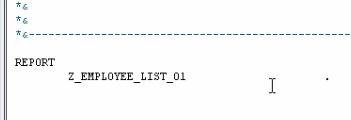
As long as the period appears at the end of the statement, no problems will arise. It is this period which marks where the statement finishes.
If you require help with a statement, place the cursor within the statement and choose the ‘Help on…’ button in the top toolbar:
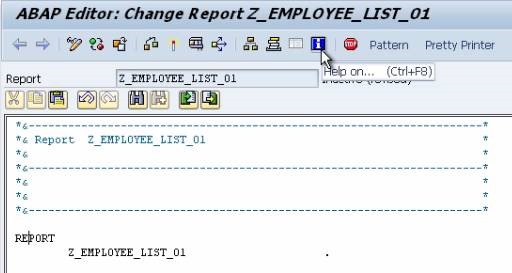
A window will appear with the ABAP keyword automatically filled in. Click the continue button and the system will display help on that particular statement, giving an explanation of what it is used for and the syntax. This can be used for every ABAP statement within an SAP system. Alternatively, this can be achieved by clicking the cursor within the statement, and pressing the F1 key:

A further tip in this vein is to use the ‘ABAP Documentation and Examples’ page, which can be accessed by entering transaction code ABAPDOCU into the transaction code field. The menu tree to the left hand side on this screen allows you to view example code, which one’s own code can later be based upon. This can either be copied and pasted into the ABAP editor, or experimented with inside the screen itself using the Execute button to run the example code:

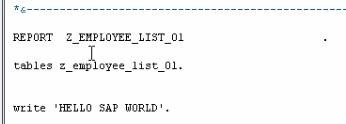
Returning to the ABAP editor now, the first line of code will be written. On the line below the REPORT statement, type the statement: write ‘HELLO SAP WORLD’.
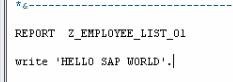
The write statement will, as you might expect, write whatever is in quotes after it to the output window (there are a number of additions which can be made to the write statement to help format the text, which we will return in a later chapter).
Save the program, and check the syntax with the ‘Check’ button in the toolbar (or via CTRL + F2). The status bar should display a message reading “Program Z_EMPLOYEE_LIST_01 is syntactically correct”. Then, click the ‘Activate’ button, which should add the word ‘Active’ next to the program name. Once this is done, click the ‘Direct processing’ button to test the code:

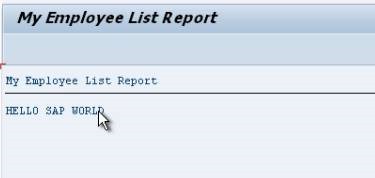
The report title and the text output should appear like this, completing the program:
Write Statements
Now that the first program has been created, it can be expanded with the addition of further ABAP statements. Use the Back button to return from the test screen to the ABAP editor.
Here, the tables which were created in the ABAP Dictionary during the first stage will be accessed. The first step toward doing this is to include a table’s statement in the program, which will be placed below the REPORT statement. Following this, the table name which was created is typed in, z_employee_list_01, and, as always, a period to end the statement:
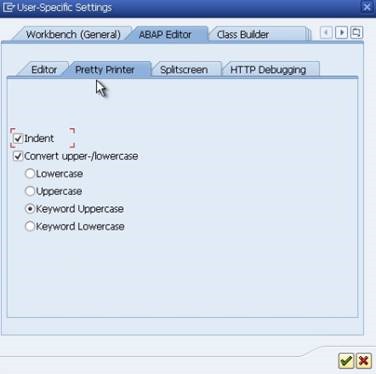
While not essential, to keep the format of the code uniform, the Pretty Printer facility can be used. Click the ‘Pretty Printer’ button in the toolbar to automatically alter the text in line with the Pretty Printer settings (which can be accessed through the Utilities menu, Settings, and the Pretty Printer tab in the ABAP Editor section):
Once these settings have been applied, the code will look slightly tidier, like this:

Let us now return to the TABLES statement. When the program is executed, the TABLES statement will create a table structure in memory based on the structure previously defined in the ABAP Dictionary. This table structure will include all of the fields previously created, allowing the records from the table to be read and stored in a temporary structure for the program to use.
To retrieve from our data dictionary table and place them into the table structure, the SELECT statement will be used.
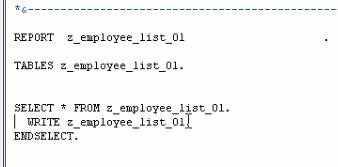
Type SELECT * from z_employee_list_01. This is telling the system to select everything (the * refers to all-fields) from the table. Because the SELECT statement is a loop, the system must be told where the loop ends. This is done by typing the statement ENDSELECT. Now we have created a select loop let’s do something with the data we have are looping through. Here, the WRITE command will be used again. Replace the “write ‘HELLO SAP WORLD’.” line with “write z_employee_list_01.” to write every row of the table to the output window:
Check the code with the ‘Check’ button, and it will state that there is a syntax error:
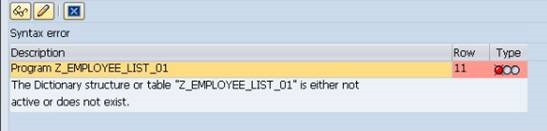
The cursor will have moved to the TABLES statement which was identified, along with the above warning. The name “Z_EMPLOYEE_LIST_01” appears to be incorrect. To check this, open a new session via the New Session button in the toolbar  . Execute the ABAP Dictionary with transaction code SE11, search for Z* in the ‘Database table’ box and it will bring back the table ZEMPLOYEES, meaning that the initial table name Z_EMPLOYEE_LIST_01 was wrong. Close the new session and the syntax error window and type in the correct table name ‘ZEMPLOYEES’ after the TABLES state. Your screen should look like this:

Save the program and check the code, ensuring the syntax error has been removed, and then click the Test button (F8) and the output window should display every row of the table:

Look at the data in the output window. The system has automatically put each line from the table on a new row. The WRITE statement in the program did not know that each row was to be output on a new line; this was forced by some of the default settings within the system regarding screen settings, making the line length correspond to the width of the screen. If you try to print the report, it could be that there are too many columns or characters to fit on a standard sheet of A4. With this in mind, it is advisable to use an addition to the REPORT statement regarding the width of each line.
Return to the program, click the REPORT statement and press the F1 key and observe the LINE SIZE addition which can be included:
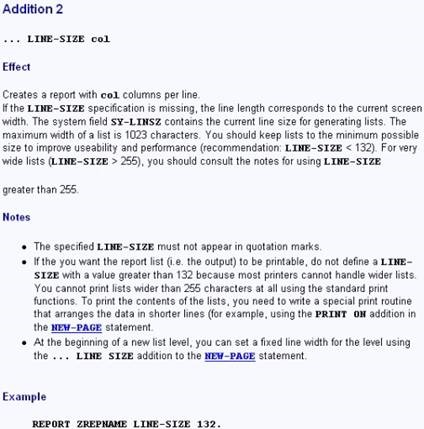
In this example, add the LINE-SIZE addition to the REPORT statement. Here, the line will be limited to 40 characters. Having done this, see what difference it has made to the output window. The lines have now been broken at the 40 character limit, truncating the output of each line:


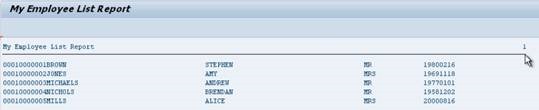
Bear these limits in mind so as to avoid automatic truncation when printing reports. For a standard sheet of A4 this limit will usually be 132 characters. When the limit is set to this for the example table here, the full table returns, but the line beneath the title ‘My Employee List Report’ displays the point at which the output is limited:
Next, the program will be enhanced somewhat, by adding specific formatting additions to the WRITE statement. First, a line break will be inserted at the beginning of every row that is output.
Duplicate the previous SELECT – ENDSELECT statement block of code and place a ‘/’ after the WRITE statement. This will trigger a line break:
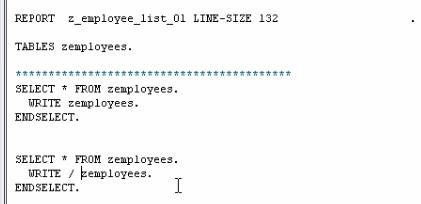
Save and execute the code. The output window should now look like this:

The first SELECT loop has created the first five rows, and the second has output the next five.
Both look identical. This is due to the LINE-SIZE limit in the REPORT statement, causing the first five rows to create a new line once they reached 132 characters. If the LINE-SIZE is increased to, for example 532, the effects of the different WRITE statements will be visible:

The first five rows, because they do not have a line break in the WRITE statement, have appeared on the first line up until the point at which the 532 character limit was reached and a new line was forced. The first four records were output on the first line. The 5th record appears on a line of its own followed by the second set of five records, having had a line break forced before each record was output.
Return the LINE-SIZE to 132, before some more formatting is done to show the separation between the two different SELECT loops.
Above the second SELECT loop, type ULINE. This means underline.
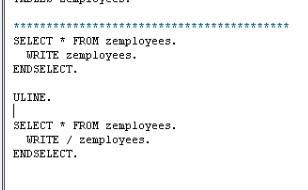
Click the ULINE statement and press F1 for further explanation from the Documentation window, which will state “Writes a continuous underline in a new line.” Doing this will help separate the two different SELECT outputs in the code created. Execute this, and it should look like so:

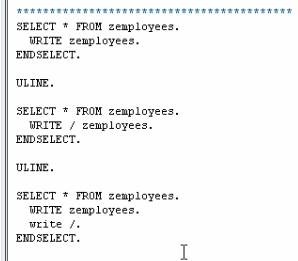
Duplicate the previous SELECT – ENDSELECT statement block of code again, including the ULINE, to create a third SELECT output. In this third section, remove the line break from the WRITE statement and, on the line below, type “WRITE /.” This will mean that a new line will be output at the end of the previous line. Execute this to see the difference in the third section:

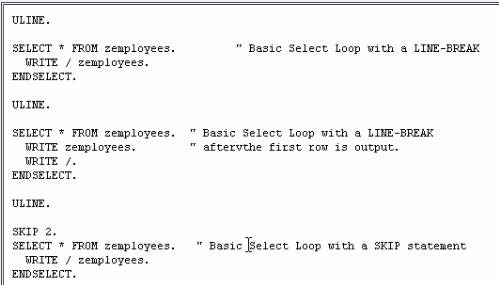
Now, create another SELECT loop by duplicating the second SELECT loop. This time the WRITE statement will be left intact, but a new statement will be added before the SELECT loop: SKIP, which means to skip a line. This can have a number added to it to specify how many lines to skip, in this case 2. If you press F1 to access the documentation window it will explain further, including the ability to skip to a specific line. The code for this section should look like the first image, and when executed, the second:


Our program should now look as shown below. Comments have been added to help differentiate the examples.
Output Individual Fields
Create another SELECT statement. This time, instead of outputting entire rows of the table, individual fields will be output. This is done by specifying the individual field after the WRITE statement. On a new line after the SELECT statement add the following line WRITE / zemployees-surname. Repeat this in the same SELECT loop for fields Forename and DOB. Then execute the code:
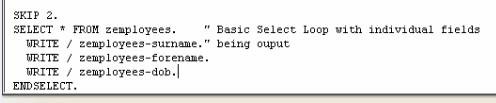
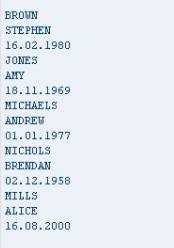
To tidy this up a little remove the / from the last 2 WRITE statements which will make all 3 fields appear on 1 line.


Chaining Statements Together
We have used the WRITE statement quite a lot up to now and you will see it appear on a regular basis in many standard SAP programs. To save time, the WRITE statements can be chained together, avoiding the need to duplicate the WRITE statement on every line.
To do this, duplicate the previous SELECT loop block of code. After the first WRITE statement, add “:” This tells the SAP system that this WRITE statement is going to write multiple fields (or text literals). After the “zemployees-surname” field change the period (.) to a comma (,) and remove the second and third WRITE statements. Change the second period (.) to comma (,) also but leave the last period (.) as is to indicate the end of the statement. This is how we chain statements together and can also be used for a number of other statements too.
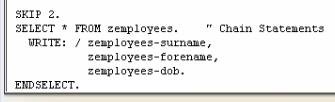
Execute the code, and the output should appear exactly the same as before.
Copy Your Program
Let’s now switch focus a little and look at creating fields within the program. There are two types of field to look at here, Variables and Constants.
Firstly, it will be necessary to generate a new program from the ABAP Editor. This can be done either with the steps from the previous section, or by copying a past program. The latter option is useful if you plan on reusing much of your previous code. To do this, launch transaction SE38 again and enter the original program’s name into the ‘Program’ field of the ‘Initial’ screen, and then click the Copy button (CTRL + F5):

A window will appear asking for a name for the new program, in this instance, enter Z_EMPLOYEE_LIST_2 in the ‘Target Program’ input box, then press the Copy button. The next screen will ask if any other objects are to be copied. Since none of the objects here have been created in the first program, leave these blank, and click Copy. The ‘Create Object Directory Entry’ screen will then reappear and, as before you should assign the entry to ‘Local object’. The status bar will confirm the success of the copy:

The new program name will then appear in the ‘Program’ text box of the ABAP Editor Initial screen. Now click the Change button to enter the coding screen.
The copy function will have retained the previous report name in the comment space at the top of your program and in the initial REPORT statement, so it is important to remember to update these. Also, delete the LINE-SIZE limit, so that this does not get in the way of testing the program.

Because there are a number of SELECT and WRITE statements in the program, it is worth looking at how to use the fast comment facility. This allows code to be, in practical terms, removed from the program without deleting it, making it into comments, usually by inserting an asterisk (*) at the beginning of each line. To do this quickly, highlight the lines to be made into comment and hold down CTRL + <. This will automatically comment the lines selected. Alternatively, the text can he highlighted and then in the ‘Utilities’ menu, select ‘Block/Buffer’ and then ‘Insert Comment *’. The selected code is now converted to comment:
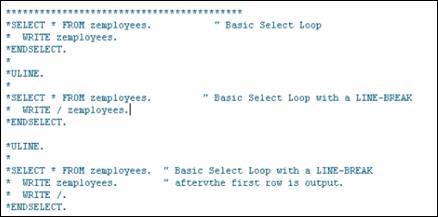
Delete most of the code from the program now, retaining one section to continue working with.
Declaring Variables
A field is a temporary area of memory which can be given a name and referenced within programs. Fields may be used within a program to hold calculation results, to help control the logic flow and, because they are temporary areas of storage (usually held in the RAM), can be accessed very fast, helping to speed up the program’s execution. There are, of course, many other uses for fields.
The next question to examine is that of variables, and how to declare them in a program. A variable is a field, the values of which change during the program execution, hence of course the term variable.
There are some rules to be followed when dealing with variables:
· They must begin with a letter.
· Can be a maximum size of 30 characters,
· Cannot include + , : or ( ) in the name,
· Cannot use a reserved word.
When creating variables, it is useful to ensure the name given is meaningful. Naming variables things like A1, A2, A3 and so on is only likely to cause confusion when others come to work with the program. Names like, in the example here, ‘Surname’, ‘Forename’, ‘DOB’ are much better, as from the name it can be ascertained exactly what the field represents.
Variables are declared using the DATA statement. The first variable to be declared here will be an integer field. Below the section of code remaining in your program, type the statement DATA followed by a name for the field – integer01. Then, the data type must be declared using the word TYPE and for integers this is referred to by the letter i. Terminate the statement with a period.
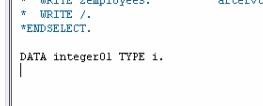
Try another, this time named packed_decimal01, the data type for which is p. A packed decimal field is there to help store numbers with decimal places. It is possible to specify the number of decimal places you want to store. After the ‘p’, type the word decimals and then the number desired, in this instance, 2 (packed decimal can store up to 14 decimal places). Type all of this, then save the program:

These data types used are called elementary. These types of variables have a fixed length in ABAP, so it is not necessary to declare how long the variables need to be.
There is another way of declaring variables, via the LIKE addition to the DATA statement. Declare another variable, this time with the name packed_decimal02 but, rather than using the TYPE addition to define the field type, use the word LIKE, followed by the previous variable’s name “packed_decimal01”. This way, you can ensure subsequent variables take on exactly the same properties as a previously created one. Copy and paste this several times to create packed_decimal03 and 04.
If you are creating a large number of variables of the same data type, by using the LIKE addition, a lot of time can be saved. If, for example, the DECIMALS part were to need to change to 3, it would then only be necessary to change the number of decimals on the original variable, not all of them individually:
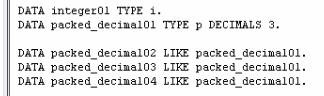
Additionally, the LIKE addition does not only have to refer to variables, or fields, within the program. It can also refer to fields that exist in tables within the SAP system. In the table we created there was a field named ‘Surname’. Create a new variable called new_surname using the DATA statement. When defining the data type use the LIKE addition followed by zemployees-surname. Defining fields this way saves you from having to remember the exact data type form every field you have to create in the SAP system.

Check this for syntax errors to make sure everything is correct. If there are no errors remove the new_surname, packed_decimal02, 03 and 04 fields as they are no longer needed.
With another addition which can be made to the DATA statement, one can declare initial values for the variables defined in the program. For the “integer01” variable, after “TYPE i”, add the following addition: VALUE 22. This will automatically assign a value of 22 to “integer01” when the program starts.
For packed decimal fields the process is slightly different. The VALUE here must be specified within single quotation marks, ‘5.5’ as without these, the ABAP statement would be terminated by the period in the decimal. Note that one is not just limited to positive numbers. If you want to declare a value of a negative number, this is entirely possible:

Constants
A constant is a variable whose associated value cannot be altered by the program during its execution, hence the name. Constants are declared with the CONSTANTS statement (where the DATA statement appeared for variables). When writing code then, the constant can only ever be referred to; its value can never change. If you do try to change a Constant’s value within the program, this will usually result in a runtime error.
The syntax for declaring constants is very similar to that of declaring variables, though there are a few differences. You start with the statement CONSTANTS. Use the name myconstant01 for this example. Give it a type p as before with 1 decimal place and a value of ‘6.6’. Copy and paste and try another with the name myconstant02, this time a standard integer (type ‘i’) with a value of 6:

(A note: one cannot define constants for data types XSTRINGS, references, internal tables or structures containing internal tables.)