

Concept Of Chart Of Accounts
The chart of accounts is the list of all the general ledger accounts that can be used by one or more company codes. As a good SAP business practice, the chart of accounts should be one of the first organizational elements which a company implementing SAP should finalize. This is because the chart of accounts decides which G/L accounts will be available for general as well as tax related postings.

The chart of accounts is defined at the client level i.e. above the company code level. This allows the same chart of accounts to be used by multiple company codes. This is helpful in case of sister companies which are defined as separate legal entities but require more or less identical general ledger accounts.
Types Of Chart Of Accounts
A single company code can have three types of charts of accounts. This is required in case the same company needs to prepare financial statements in more than one format. The different types of chart of accounts are:
- OPERATING CHART OF ACCOUNTS: This is the main chart of accounts used by the company code and contains the list of all the general ledger accounts that can be used for posting transactions in the company code.
- GROUP CHART OF ACCOUNTS: The group chart of accounts is optional and needs to be specified if the company is a sister concern of many other companies under a parent company. The group chart of accounts contains all the general ledger accounts which are required to create financial statements for the group company as a whole. It is used for consolidation purposes.
- COUNTRY CHART OF ACCOUNTS: The country chart of account is optional and is required to meet that country’s legal requirements in which the company operates. For e.g. a US based company ABC Consulting Limited operates in Mexico as well, and is registered in Mexico as ABC Consulting Mexico Limited. The Mexico subsidiary therefore needs to produce financial statements according to the US GAAP as it is a part of the main company located in the US, and also according to Mexico GAAP tomeet the statuary requirements of the Mexico tax code. Therefore, in such a case the Mexico chart of accounts will be assigned as the country chart of accounts, and the US chart of accounts will be assigned as the operating chart of accounts to the Mexico company code. This will allow the Mexico subsidiary to fulfill the reporting requirements both in the US as well in Mexico.
The General ledger accounts in different chart of accounts are linked to each other by the alternative account number field provided in the General Ledger Master. Therefore, using the alternative account number field all the general ledger accounts in the US chart of accounts will be linked to general ledger accounts in the Mexico chart of accounts.
Crating A Chart Of Accounts
STEP 1: Navigate to the path as shown below in the implementation guide or execute the transaction OB13 from the SAP Easy Access menu. Use the transaction code SPRO to get to the Implementation guide from the SAP Easy Access menu.
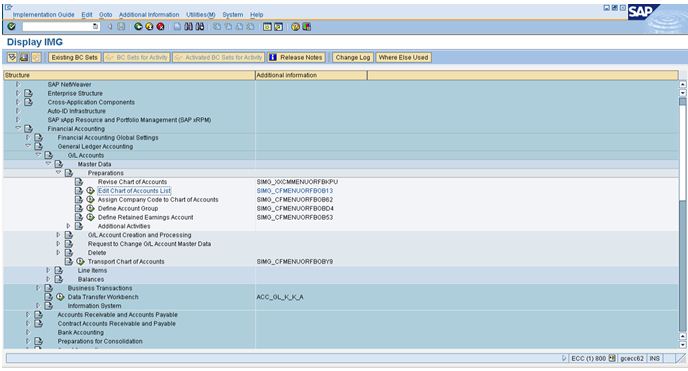
STEP 2: The existing chart of accounts in the client along with their description are displayed. Click on the new entries button to create a new chart of accounts.

STEP 3: The new entries screen for the chart of accounts is displayed as shown below.
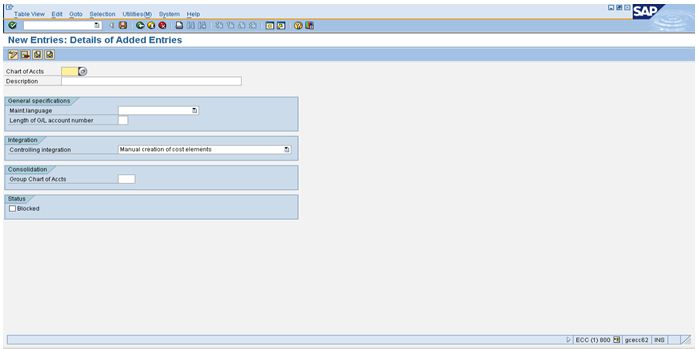
STEP 4: The chart of accounts is represented by a four character identifier. The length of the all the general ledger accounts is also specified at the chart of accounts level. In the example below the length has been set at 6. This implies that all the general ledger accounts in this chart of accounts will be having 6 digit account numbers. Enter the data as shown below and click on save.
SAP best business practices dictate the length of the general ledger accounts should be large enough so that all the required accounts can be created. For e.g. if the length is set as 3, then only 999 G/L accounts can be created from 001 to 999. In such a case 999 accounts may not be sufficient. Therefore, the length of the G/L accounts should be large enough to accommodate all the accounts that need to be created.
The process of mapping the existing accounts to SAP chart of accounts should follow the following steps:
- Determine the account classification being used in the legacy system or which is desired to be used.
- Identify the general ledger accounts being used by the employees by asking them.
- Identify the accounts which are no longer required.
- Determine the general ledger accounts required for special transactions or automatic postings.
Once the above procedure is completed, the final list of accounts will be the one that is used for transaction posting and should be available in the chart of accounts. As a good SAP business practice it is always recommended to keep the number of G/L accounts as low as possible.

STEP 5: The message ‘Data was saved’ is displayed as shown below. This success message implies that the new chart of accounts has been created successfully.

STEP 6: Click on the back button to see the chart of accounts list. The newly created chart of accounts is now displayed in the list as shown below.

Assigning Company Code To Chart Of Accounts
STEP 1: Navigate to the path as shown below in the implementation guide or execute the transaction OB62 from the SAP Easy Access menu. Use the transaction code SPRO to get to the Implementation guide from the SAP Easy Access menu.

STEP 2: The screen showing the assignments of company codes to chart of accounts is displayed as shown below. Navigate to the company code for which the chart of accounts is to be assigned and then enter the chart of accounts as shown below.

STEP 3: The success message is displayed as shown below. The company code has now been assigned to the chart of accounts and all the accounts in the chart of accounts list can now be used by the company code.
